The Wait For task will put your workflow into a hold state while DocStar ECM waits for a particular condition to be true. You can set a limit to how long it will wait and enable polling to allow DocStar ECM to check for this periodically.
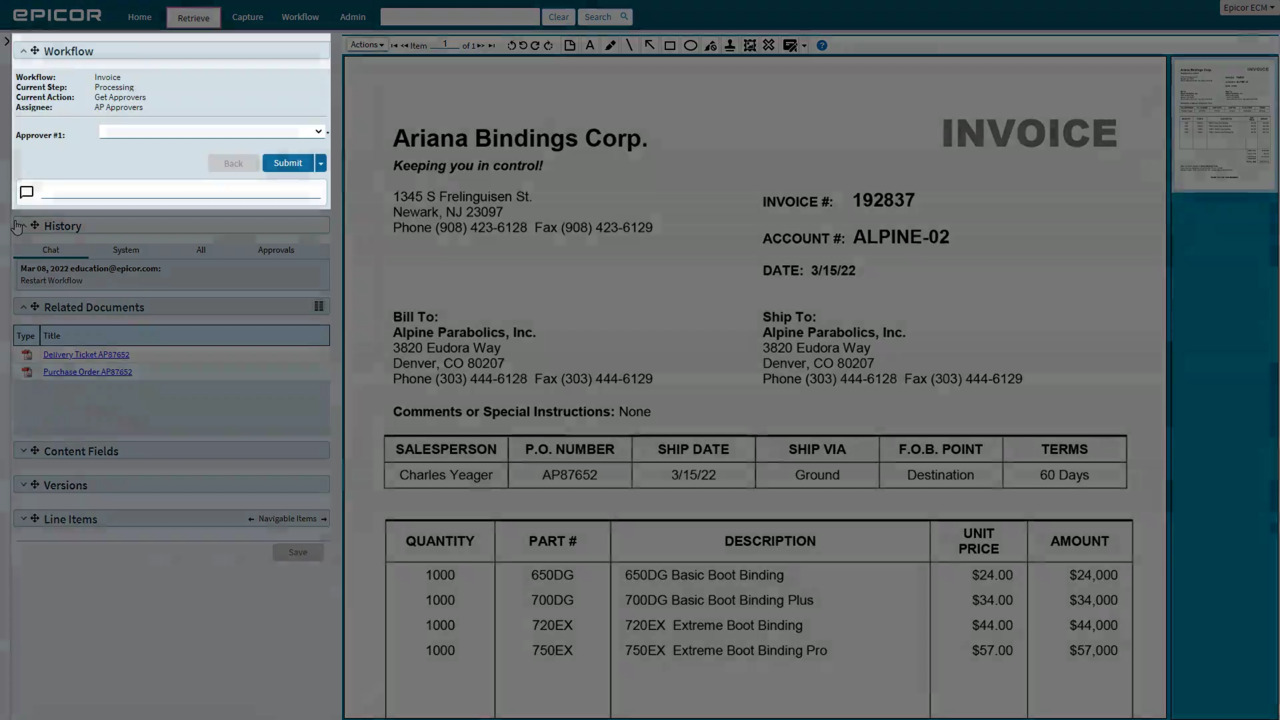
Workflow: your items come into Epicor ECM, then something needs to happen to them to complete the business process. Once you've found an item in the workflow queue, learn how to process it!
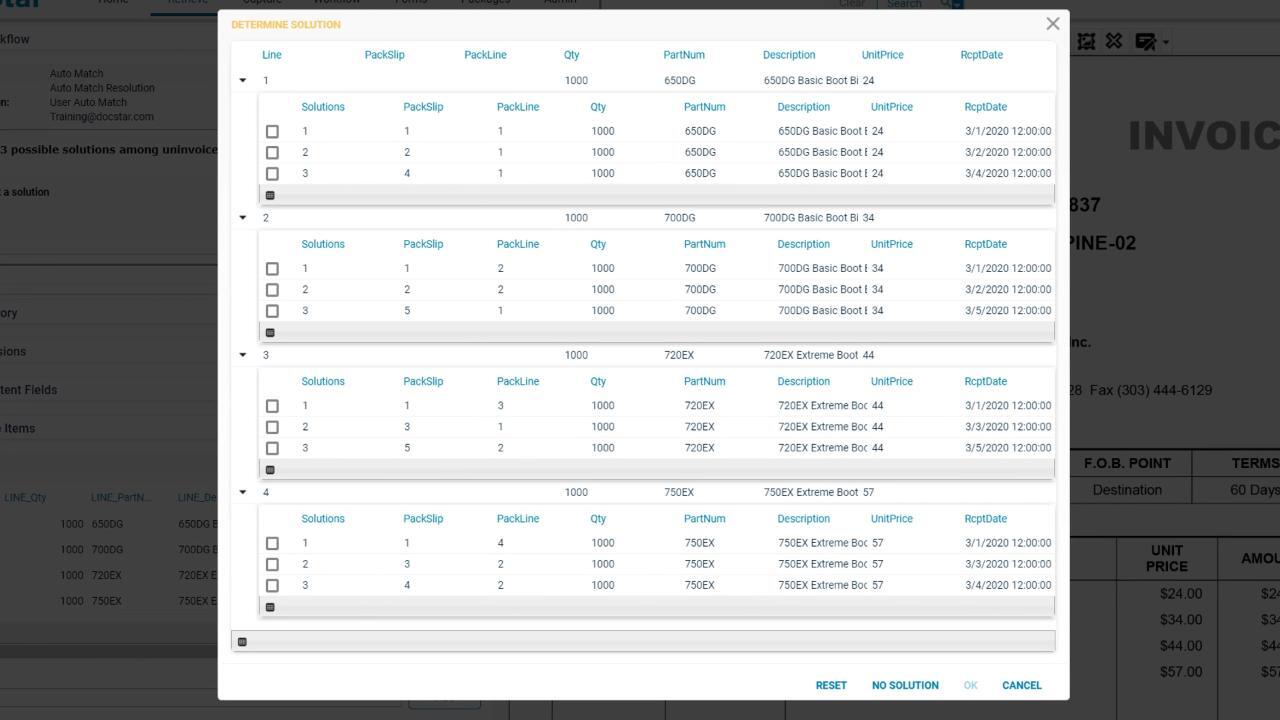
We've added an "Auto Match" task and a “User Auto Match” task to the workflow designer to help make matching your AP receipt items to your invoice! Learn how to choose a solution for a receipt / invoice combination here!
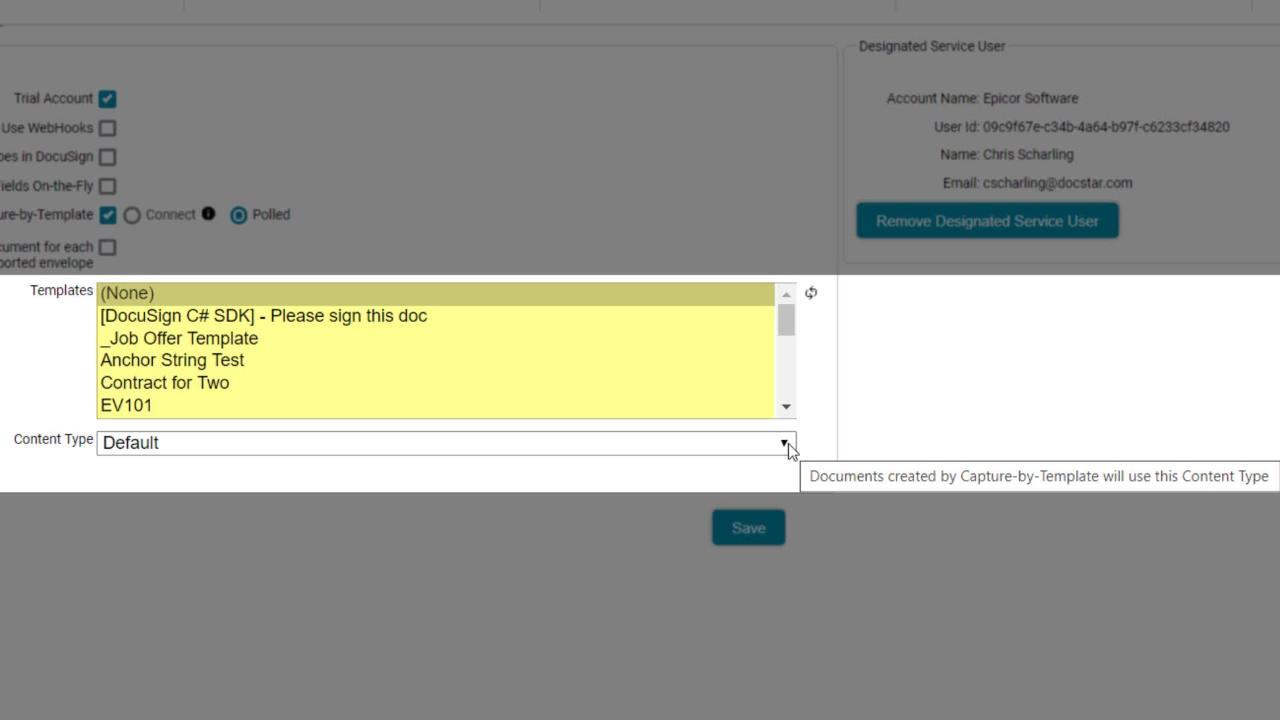
You can automatically import all of your DocuSign envelopes using Capture-by-Template. We’ve enhanced this feature in 20.1 so that additional documents in an envelope can be created as individual items in DocStar ECM.
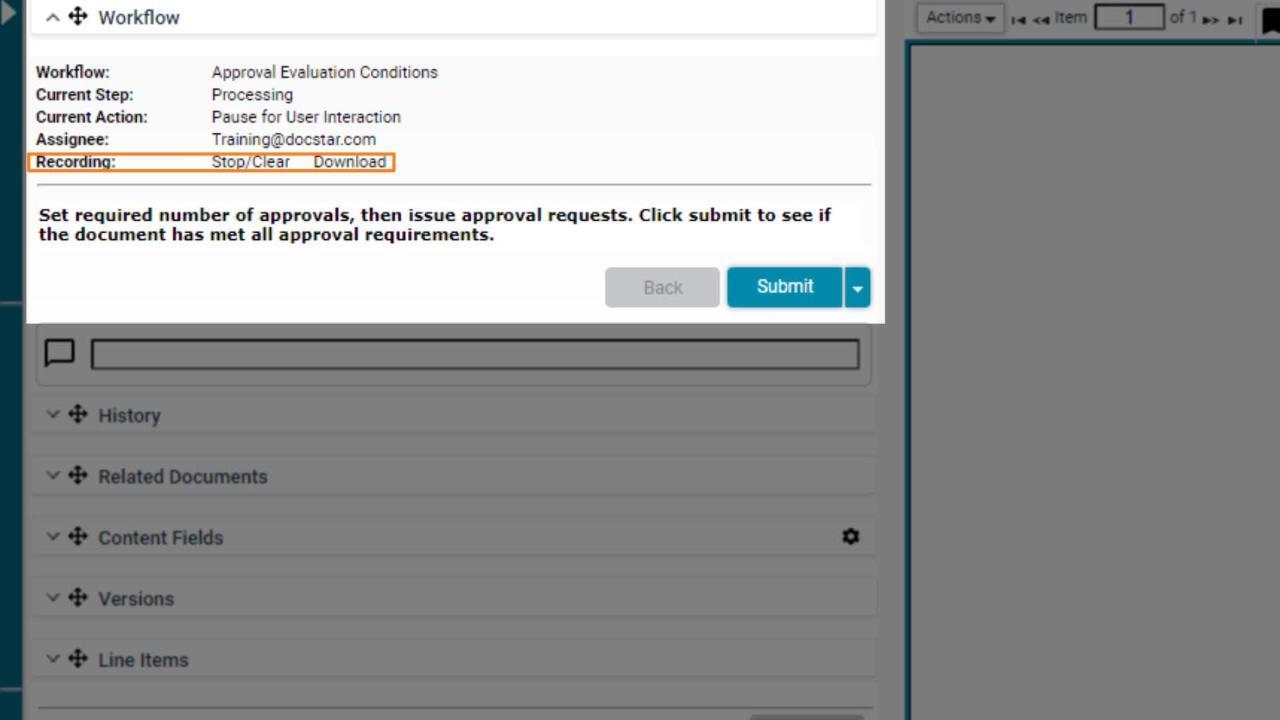
New in 20.2, the Workflow Recorder provides an XML-based output of all of your workflow's actions, outputs, and variables. Use this to diagnose your workflows as you're building!
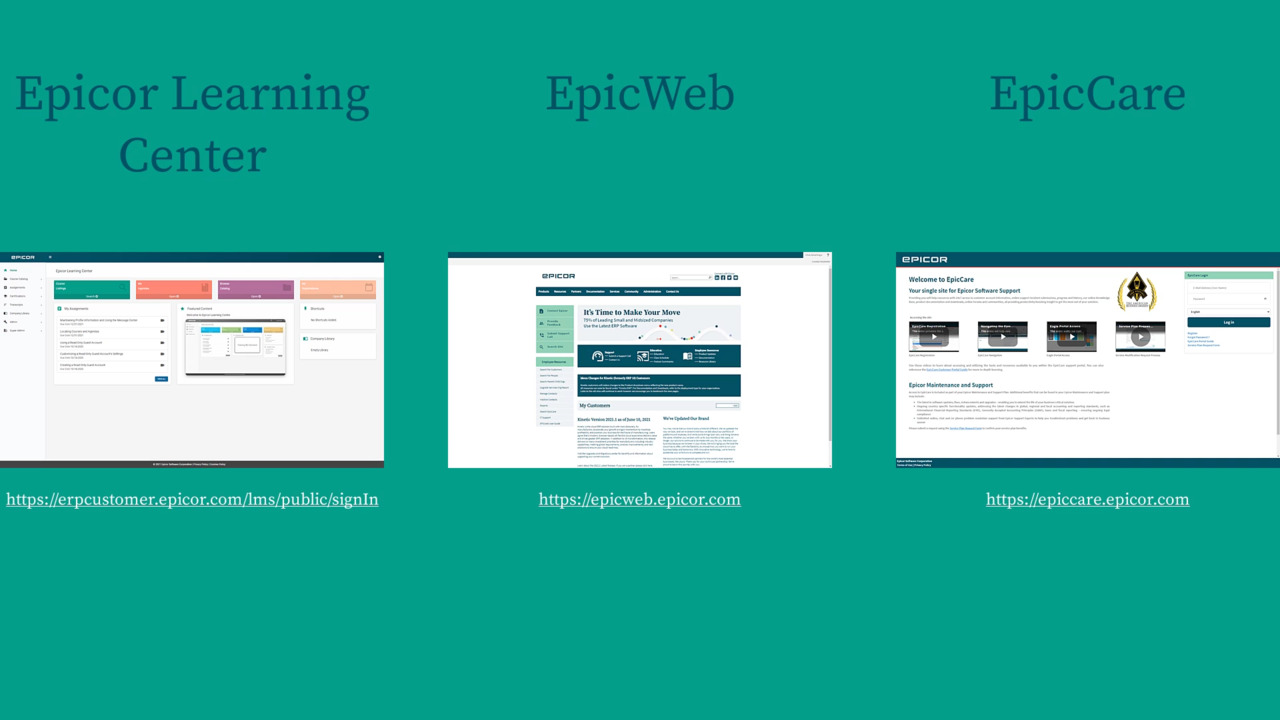
An EpicWeb account grants you access to more than just EpicWeb. Learn how to create your account and gain access to Epicor Learning Center and EpicCare.